Short, silent walkthroughs
How BibleBot Works
Four short, silent walkthroughs show how to read a passage, follow its context, gather material, and return to a saved draft. Each lesson also includes the full steps in writing.
Videos are optional. Choose Show me when you’re ready; nothing plays automatically.
01 Start reading
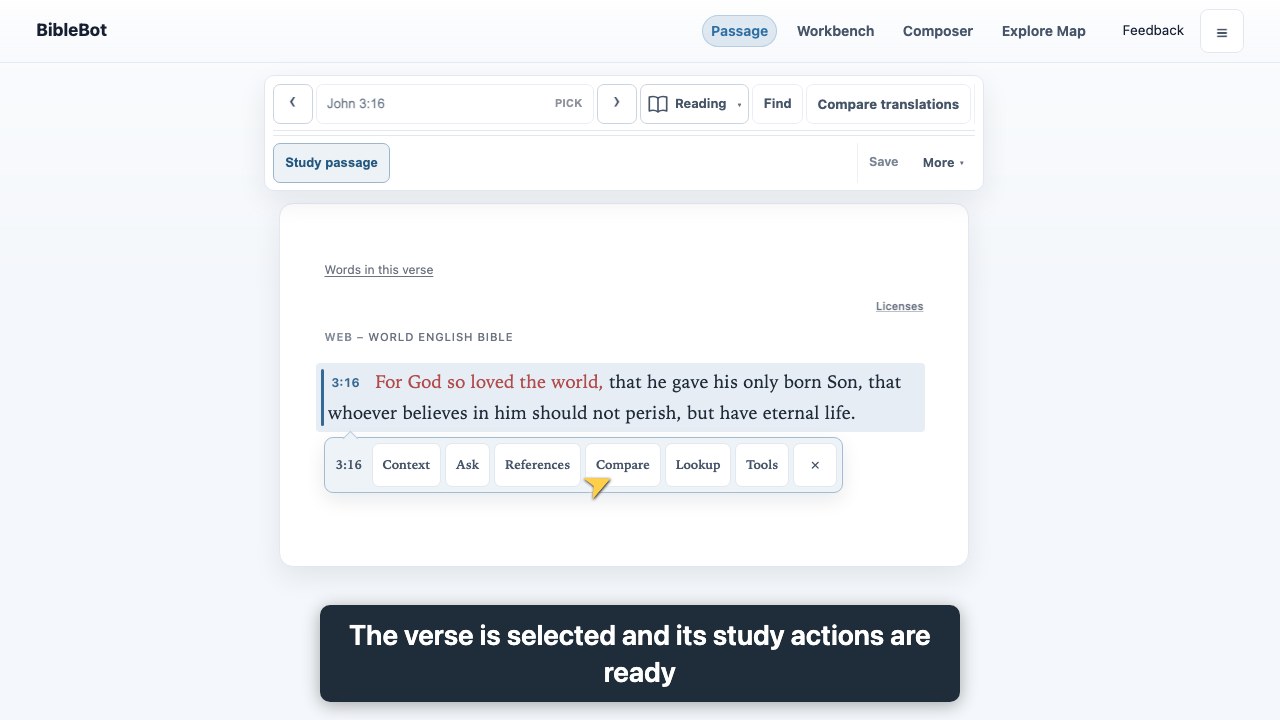
Open a passage and select a verse
Go straight to a book and chapter, then select the verse you want to study.
- Open Passage from the site menu.
- Choose a book and chapter or type a reference, then choose Load.
- Select a verse to open its actions and begin exploring.
02 Read with care
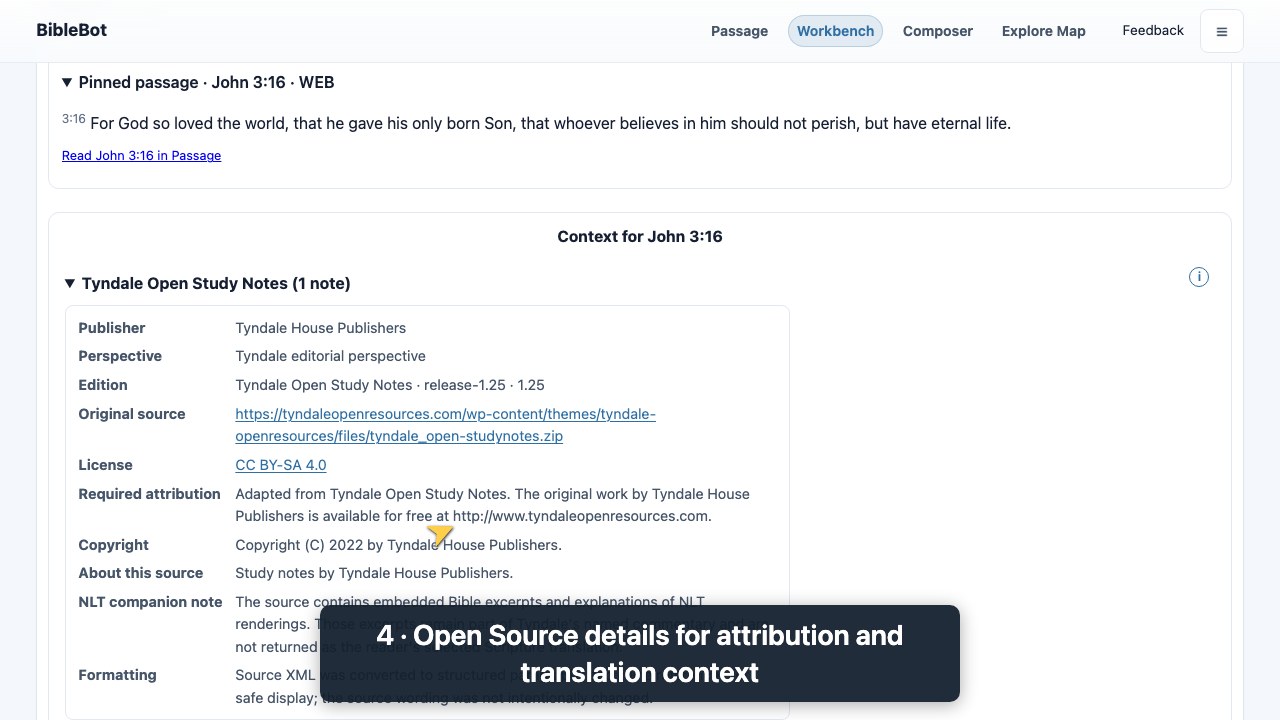
Read a Context source
Read a Context note with its publisher attribution, then open source details to review the publication information.
- Open Workbench and choose Context.
- Enter John 3:16 as the optional passage and choose Apply.
- Read the Tyndale note and its publisher attribution. Open Source details to review the source information.
03 Gather material
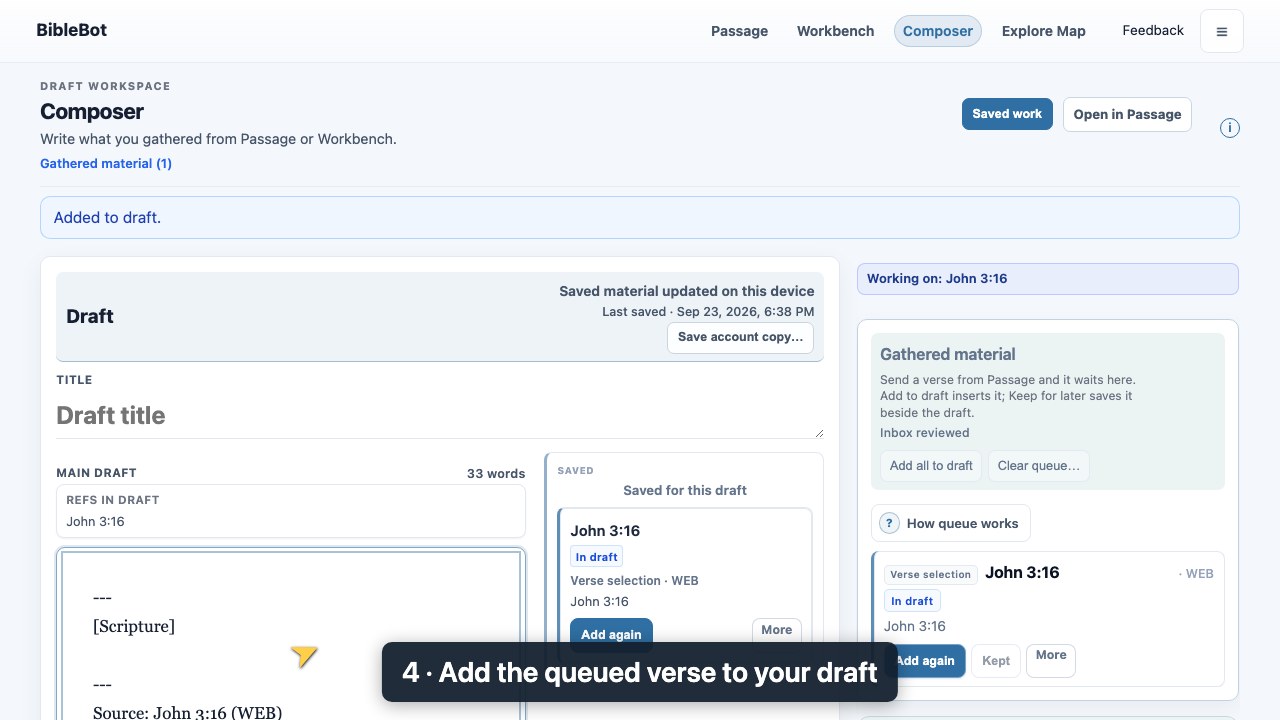
Send gathered material to Composer
Choose what to carry into your writing. Sending material does not save an account draft.
- Select a verse or useful item and choose Send to Composer.
- In Composer, find the item under Gathered material.
- Choose Add to draft to place selected material in your writing. Review it before continuing.
04 Keep your work
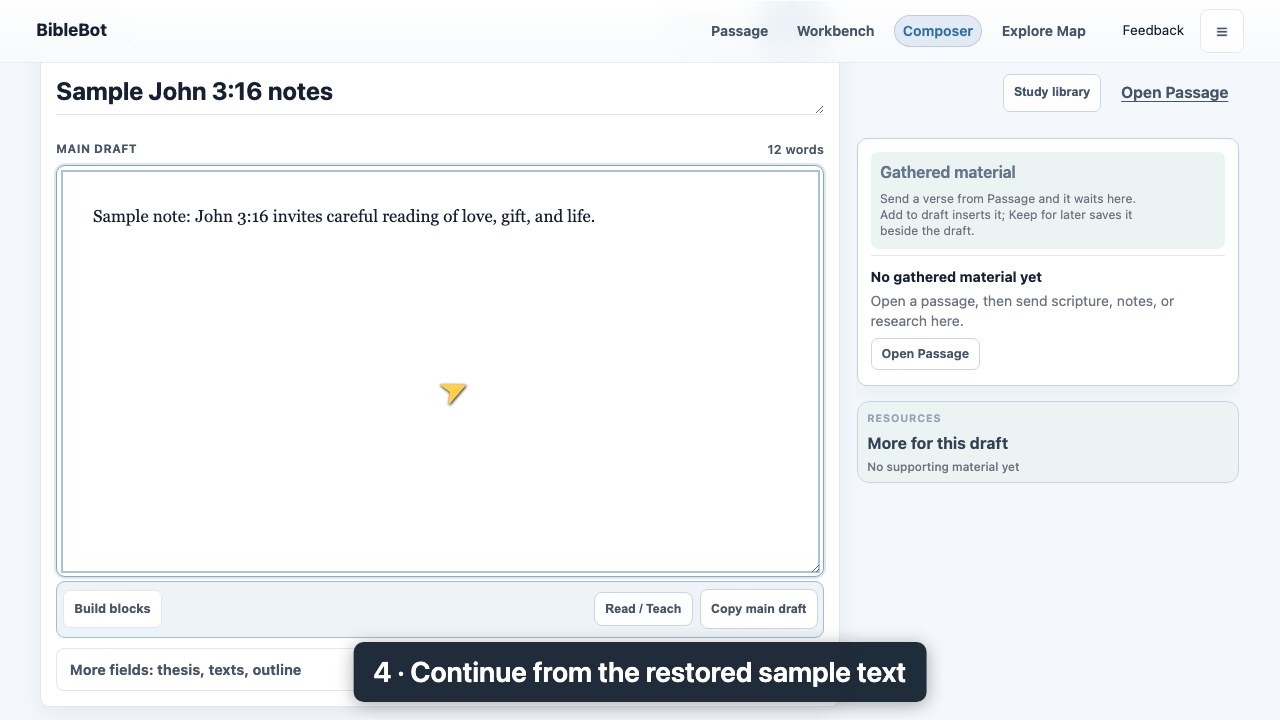
Save and reopen a named account draft
A saved account draft is a named copy you can reopen later. Writing alone does not save it to your account; later saves update that named draft.
- For a new draft, choose Save. Enter a name and choose Save draft. Wait for Saved before leaving.
- Later, open My drafts and choose Refresh list.
- Select your named draft and choose Open draft. Review the preview, then choose Replace working draft.